Admin Panel: Security Settings
Overview
Maintaining a secure and organized workspace is essential for any business. The Security Settings in the CustomBooks™ Admin Panel provide a centralized hub for managing who has access to your data and what level of permission they hold.
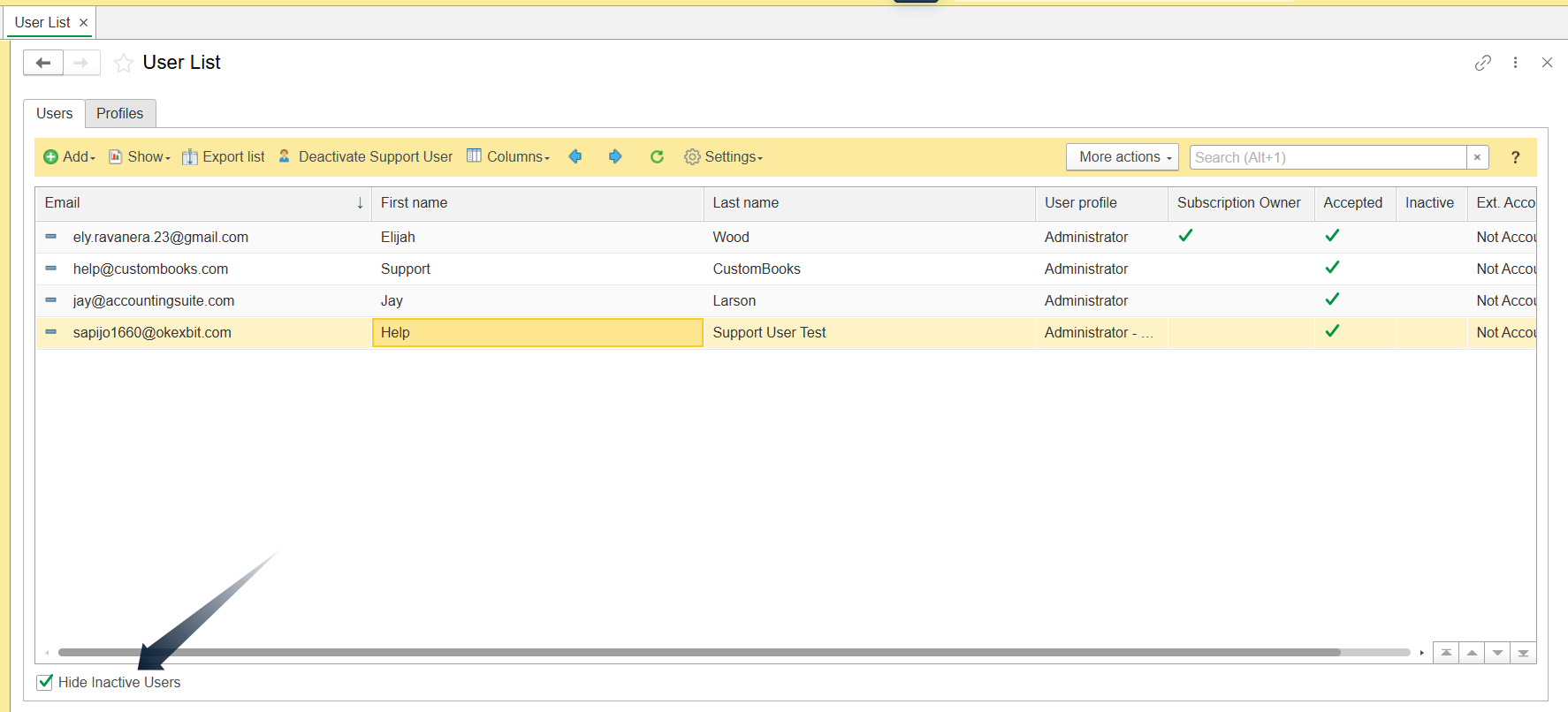
The Security Settings interface is divided into two primary tabs: Users and Profiles.
How to Access Security Settings
To manage your team's access, follow this navigation path:
- Admin Panel → Security Settings.
Users
Within the Users tab, you can view all individuals with access to your company file. Key actions include:
- Add New Users: Create a new login by clicking the Add button and entering their email and contact details.
- Deactivate Users: To revoke access without deleting history, select and open a user and choose the deactivation option.
- Manage Support Access: You can specifically Activate or Deactivate the Support User, which allows CustomBooks™ support and developers temporary access to help resolve issues.
- Audit Log: View a detailed history of changes made to a specific user record to track administrative actions.
For more details about User management, go to this knowledge base article: Security Settings: Users
Profiles (User Profiles and Permissions)
Profiles define what a user can see and do within the system. Instead of setting permissions for every individual, you assign them a profile that matches their role.
Default Profiles
CustomBooks™ includes several pre-configured profiles to get you started:
- Administrator: Provides full access to all modules, settings, and administrative tools.
- Client Dashboard (Portal) Access Only: Allows the user to view company data or information only from the Portal or Dashboard page.
- Reports Only: Restricted access that only allows the user to view and run reports without modifying data.
- View Only: Allows the user to see data across the system but prevents them from adding, editing, or deleting records.
Custom Profiles
If the default options don't fit a specific role, you can Create a Custom Profile. This allows you to hand-pick access levels for specific modules (e.g., granting
a warehouse manager access to "Inventory" and "Purchases" only).
For more details about User Profiles and Permissions, go to this knowledge base article: Security Settings: Profiles and Permissions
The Security Settings screen offers several tools to help you organize and view your data:
- Manage Columns: Add, remove, or reorder columns (like "Accepted" or "Inactive") to customize your list view.
- Custom Views: Use Filters, Sorting, and Conditional Appearance settings to highlight specific data points.
- Refresh & Export: Use the Refresh button to update the list in real-time or Export list to save your user directory externally.

Tip: If you have a long list of former staff, check the "Hide Inactive Users" box at the bottom of the screen to declutter your view.